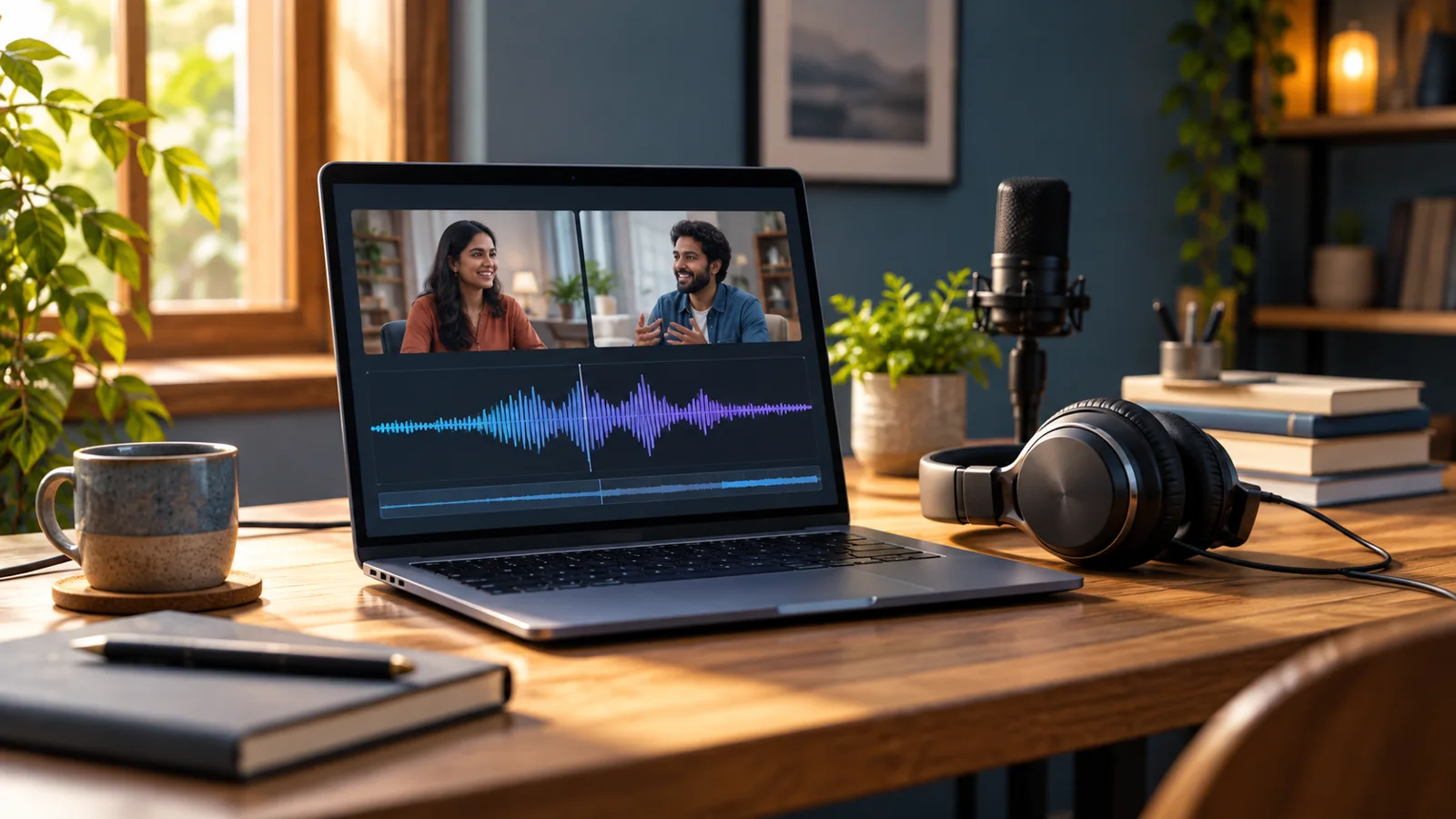
AI-generated editorial illustration of an interview-audio workspace; the people and interface shown are fictional.
An interview video is often inconvenient to send when a client only needs to hear the conversation. An audio copy can make review easier, but the format should match the next step: a compact MP3 for listening, or WAV for further editing.
This practical guide uses the released KuchhBhi Media Converter. It is a conversion workflow, not a claim that a new feature or trend has launched. The browser tool supports MP3, WAV and FLAC output and currently limits normal conversion inputs to 100 MB.
Choose the deliverable before converting
Ask the recipient whether they need to approve the interview, edit the sound, or preserve an archive. These are different jobs.
Listening and approval: MP3 is a convenient compact listening copy. Label it as a review export.
Further editing: WAV avoids another lossy MP3 encoding stage. The current tool exports 16-bit PCM WAV; it is not a configurable 24-bit production export.
Lossless compressed storage: FLAC is useful when the receiving software supports it. It compresses audio without discarding decoded samples, but cannot restore detail already lost in the source.
Audacity's format guidance distinguishes lossy MP3 from uncompressed WAV. Its MP3 export guide warns that repeated MP3 encoding adds further loss. Keep your original recording and create review copies from it.
Extracting audio removes the need to view the video track. It does not remove background noise, separate speakers, translate speech, create subtitles, improve a poor microphone recording or obtain permission to share an interview.
Converting compressed AAC or MP3 audio to WAV does not recreate missing detail. It gives you a PCM representation of the decoded source. Likewise, a larger file is not proof of better sound.
The released tool does not offer a manual audio-track selector, sample-rate control, loudness target or a fixed 320 kbps MP3 setting. Its MP3 mode uses a quality-based encoder setting. Do not promise a recipient an exact bitrate from this interface.
Step-by-step: create an interview listening copy
1. Keep the original safely
Work from a copy of your recording. Use a clear filename such as “interview-review-2026-10-05.mp3” after download. Include a version number if several revisions will circulate.
Check sharing permission, especially if the interview contains personal details, confidential client information or an unreleased announcement. A local conversion process does not make the eventual email or chat attachment private.
2. Check input size and sound
Open the original video and confirm that it plays with sound. Normal conversion accepts up to 100 MB in the current implementation. Basic Repair has a different limit, but enabling repair is not a way to bypass the conversion limit for an ordinary healthy file.
For a larger interview, use your desktop editor or desktop FFmpeg to export the audio. Avoid repeatedly squeezing a long recording through low-quality video exports just to reach a browser limit.
3. Open the converter
Visit Media Converter & Repair, choose Browse Files and select the video. Choose MP3 for a listening copy or WAV when the recipient will edit it.
The processing engine loads over the internet when needed. The media file is read and processed in browser memory rather than sent to a remote conversion API. A network connection is still needed to load the engine.
4. Run the conversion and keep the tab open
Start processing and wait for the result. Avoid closing the tab or allowing a mobile browser to suspend it. Even a file under the size limit may need more memory than its compressed size suggests.
Use a desktop browser when possible. If processing fails on a phone, try a smaller legitimate input or a desktop workflow. The size cap is an application limit, not a guarantee that every device can finish.
5. Download and listen to the actual output
Download the produced audio and open the saved file in a normal player. Check the beginning, middle and end—not only the first few seconds.
Listen for missing speech, unexpected language tracks, distorted peaks, dropouts, severe sync differences and an abrupt ending. Confirm the duration against the original. If the source has multiple audio streams, the automatic selection may not be the one you intended; use a desktop editor with explicit track selection.
6. Send a useful review note
A good attachment includes instructions. For example:
“Please review the wording and pronunciation in this audio copy. Reply with timestamps such as 02:14. Picture, subtitles and final loudness are still pending.”
For a multilingual interview, ask reviewers to check names and pronunciation in the relevant language. Do not assume an English transcript can replace listening to Tamil, Telugu, Kannada, Malayalam, Hindi or other speech.
MP3 versus WAV in a concrete project
Suppose you filmed a short customer interview and the client only needs to approve the answers. Send an MP3 listening copy with a clear review note, keeping the video and original audio securely.
If a sound editor needs to remove noise, adjust levels and create the final mix, ask for their delivery specification. They may require a 24-bit WAV, a particular sample rate, separate microphone tracks or timecode. The browser tool's 16-bit WAV output and automatic stream selection may not meet that requirement. Export directly from the original editing project instead.
This avoids confusing a convenient review copy with a production handoff.
Estimate WAV size before sending
Uncompressed PCM size depends on sample rate, bit depth, channel count and duration. For example, 48,000 samples/second × 16 bits × 2 channels × 600 seconds ÷ 8 is 115,200,000 bytes, about 115.2 MB in decimal units, plus a small header.
That is an illustrative ten-minute stereo example, not a promise about the converter's sample rate or your source. Mono or a different sample rate changes the result. MP3 is normally smaller, but the exact output depends on the audio and encoder settings.
Check the actual exported size before sending it through a chat or upload portal.
Troubleshooting common problems
The output has no useful sound
Check the source in a player. A silent video cannot gain speech through conversion. A source with several tracks may need explicit track selection in desktop software.
The engine will not load
Try an updated desktop browser and a stable connection. Network restrictions can prevent the engine download. Do not disable organisational security controls to make a converter work; use an approved local application instead.
The output is larger than the video
This can happen with WAV because the original may contain heavily compressed audio. Larger PCM storage does not imply new detail has been recovered.
The download plays but the ending is missing
Do not send it as complete. Recheck duration and the source, retry once with a healthy copy, then switch to a desktop workflow if needed.
A damaged recording fails
Basic Repair attempts to salvage readable media and regenerate timestamps. It cannot rebuild a missing MP4/MOV moov index or recover a zero-byte file. Keep the original and use an appropriate recovery workflow; recovery is not guaranteed.
Frequently asked questions
Can I extract MP3 from an MP4 interview?
Yes, when the source contains readable audio, is within the conversion limit and uses a codec the browser engine can decode. Verify the downloaded result.
Is WAV always better than MP3?
WAV is useful for editing because PCM avoids another lossy compression stage. It cannot restore quality lost during recording or earlier compression. MP3 remains useful for convenient listening copies.
Can this produce guaranteed 320 kbps MP3?
The current interface does not provide a fixed bitrate control. It uses a quality-based MP3 setting, so do not label its output as guaranteed 320 kbps.
Does it transcribe or translate my interview?
No. This workflow converts media formats. It does not generate subtitles or translate speech.
Can I select a particular microphone or language track?
The current browser interface does not expose a track selector. Use a desktop editor or FFmpeg with explicit stream mapping for that requirement.
Can I convert an hour-long recording?
Duration alone is not the deciding factor. Input size, codec and available browser memory matter. Normal conversion is capped at 100 MB; a desktop workflow is more suitable for long production recordings.
Is the file uploaded for conversion?
The released implementation reads and processes the media locally in the browser. It downloads the processing engine from the network. Sharing the final output is a separate action with its own privacy implications.