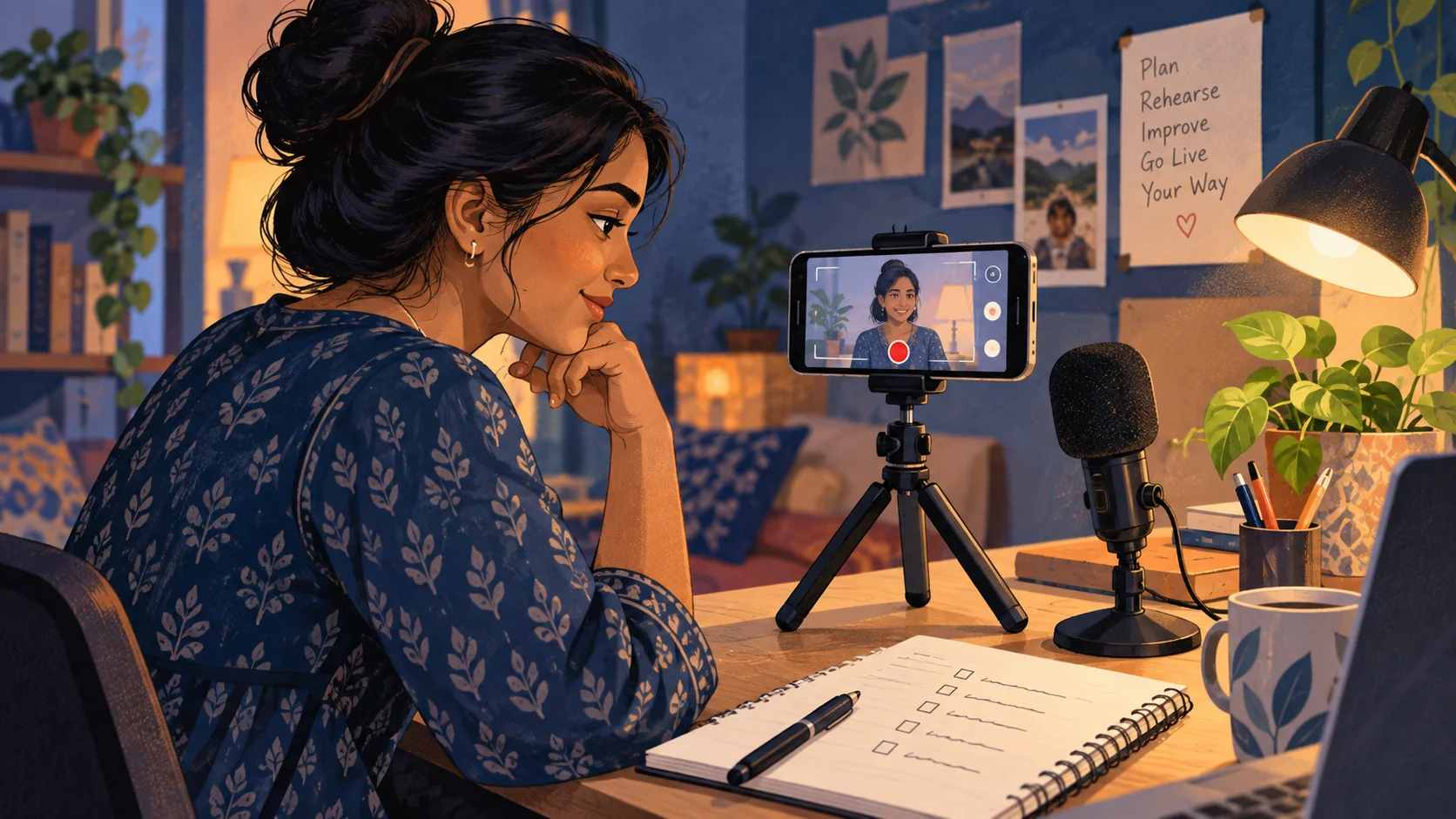
Source check: 16 September 2026. This AI-assisted guide is based on YouTube's official documentation, not a hands-on account test. The cover is an original AI-generated illustration, not a screenshot of YouTube.
Going live is an awkward time to discover that your opening makes no sense, your phone hides your notes, or the window behind you washes out your face. A short rehearsal gives you a chance to spot those problems before your first viewer arrives.
YouTube's current creator updates page lists Live Practice Mode as rolling out to creators in the YouTube mobile app. It offers a private rehearsal space before you begin broadcasting. Availability can differ while the rollout continues.
Here is how to find it, followed by a practical five-minute routine you can adapt for a tutorial, product demonstration or Q&A.
The rehearsal has no real audience. Selecting Go Live at the top right starts the broadcast; use X to leave the rehearsal instead. Treat that final Go Live control as a publishing action, not another test button.
This is a mobile live-streaming feature. YouTube's mobile eligibility rules still apply, including a verified channel, at least 50 subscribers, live streaming enabled and no live-streaming restrictions during the preceding 90 days. First-time activation can take up to 24 hours. Check the linked help page for current device and account requirements.
Find a tool for your next task
Browse practical tools for writing, images and everyday work.
The routine below is our suggested preparation checklist. It is not a list of automatic checks performed by YouTube.
Minute 1: Make the opening specific
Say your first two sentences aloud. Replace “Hello everyone, wait for more people” with a useful promise: “Today I'll show the three settings I check before recording a cooking video. We'll start with the camera angle.”
The example is deliberately narrow. A person joining early should understand what they will learn without waiting for a crowd.
Minute 2: Check the frame
Sit or stand where you will actually present. Put the object you plan to show inside the frame. Check whether your hand, tripod or notes block it when you demonstrate the important step.
Look for personal details in the background: an address on a parcel, a family photograph you prefer not to share, or a work document. Move them before broadcasting.
Minute 3: Rehearse your speaking setup
Use the microphone, earphones and phone position you intend to use for the real session. Read a few sentences at your normal volume and notice nearby noise such as a fan or an open window.
Do not assume rehearsal proves what viewers will hear. If you need playback to judge sound, make a separate short recording and listen to it before the live session.
Minute 4: Practise one transition
Move from your introduction to the first demonstration without stopping. If you need to reach for another object, keep it within easy reach. If you refer to notes, place them where you can glance at them without turning away for long.
For a bilingual stream, rehearse one transition between your languages. Explain technical words once in plain language rather than repeating the entire introduction.
Minute 5: Decide whether you are ready
Check the intended audience, title and visibility before you leave rehearsal for a real broadcast. Have a charger nearby and a simple plan for interruptions.
Write one final sentence on your notes: what should a viewer do or understand when the session ends? This helps you finish deliberately instead of trailing off.
If Practice Mode is missing
Start by checking for an update to the YouTube app and reviewing the mobile live eligibility requirements. The official documentation says the feature is rolling out, so a missing control does not by itself prove your account is broken. Avoid third-party downloads promising to unlock it.
There is a separate update worth checking: YouTube says YouTube Studio mobile versions 24.31.6 and below stopped being supported from 9 September 2026. Its creator updates notice directs users to the official app stores. Studio and the main YouTube app are different apps; updating one does not mean you updated both.
Prepare the visual before the rehearsal
Choose a clear image that honestly represents your session. Keep important details away from the edges and check whether the subject is understandable on a small phone screen.
You can browse KuchhBhi's creator tools for preparation tasks. For your own existing videos, the thumbnail downloader can help you inspect the published thumbnail. Downloading someone else's thumbnail does not grant permission to reuse it.
A rehearsal cannot promise more views. Its useful outcome is smaller and more immediate: you know what you will say, what you will show and which button starts the real broadcast.