YouTube Thumbnail Readability: A Practical Preview Checklist
Check your thumbnail at 320 pixels wide, compare honest concepts and export a clean PNG. Learn what a preview can tell you—and what needs real analytics.
Reviewed 8 October 2026. A thumbnail preview can reveal unreadable text or a bad crop. It cannot tell you what click-through rate your video will earn. Start with a truthful promise, check the image at a small size, and judge the published video with actual audience data.
Make one clear promise
Before choosing a font, finish this sentence: “A viewer who opens this video will learn or see ___.” Use a frame or image that supports that promise.
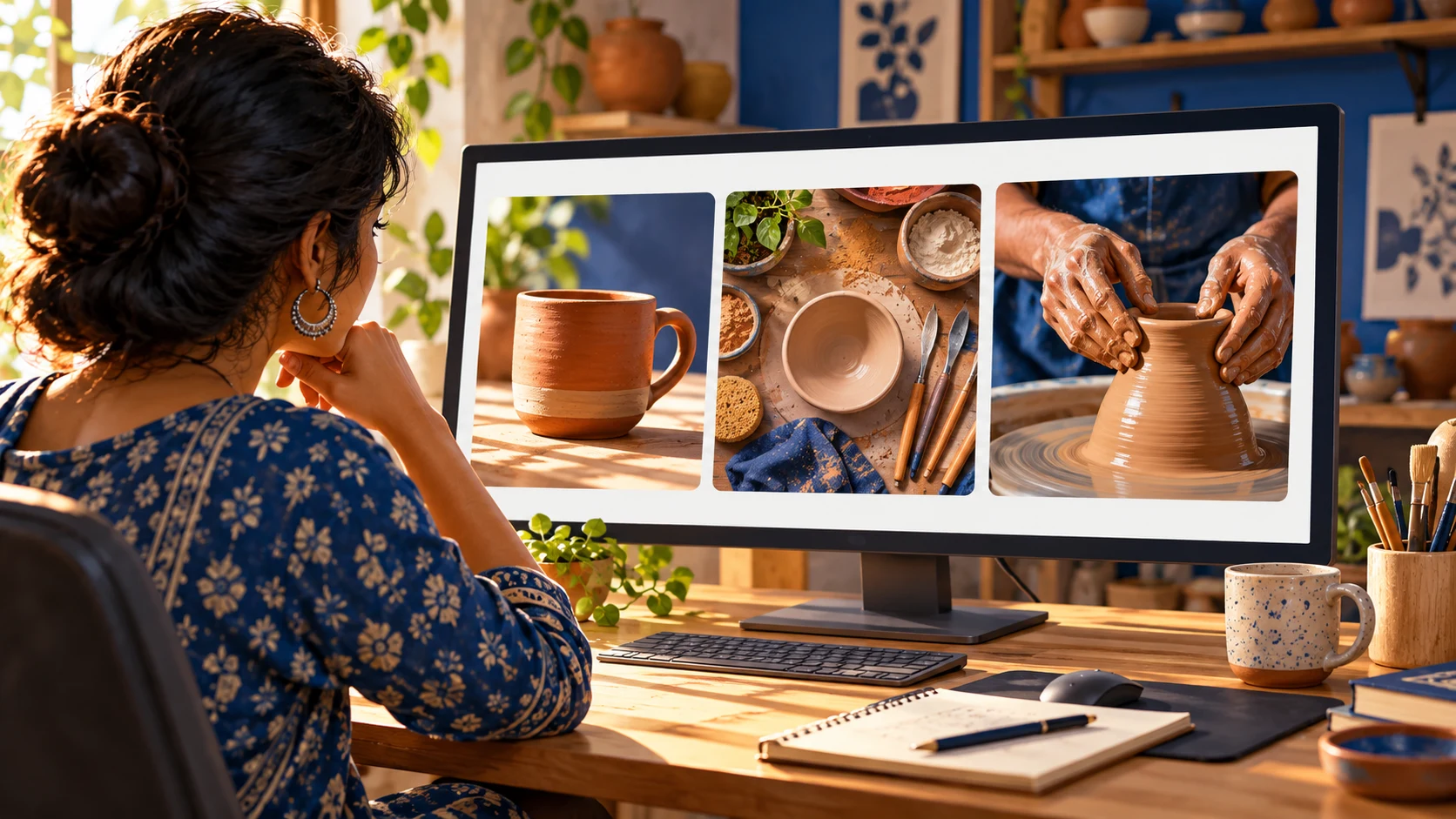
For an original clay-cup tutorial, three illustrative concepts could be:
The finished result: one completed cup beside the raw clay, with “First clay cup.”
The difficult step: a close view of shaping the rim, with “Fix uneven rims.”
The comparison: your own first and final attempts, with “What I changed.”
These are creative examples, not tested winners. Use the comparison only if those results actually appear in the video. A striking thumbnail that promises a different story creates the wrong expectation.
Check the design with the thumbnail previewer
Open the Thumbnail Previewer and upload a JPG, PNG or WebP file, up to 15 MB.
Select Landscape · 1280 × 720 for a landscape design. The image is centre-cropped; check whether hands, faces or the finished object remain visible.
Add a short headline, or clear the optional text field to keep only the image. Adjust text size, position, colour and outline.
Choose Check at 320 px wide. Can you understand the subject without enlarging it? Does the headline remain readable? If not, simplify the composition or shorten the text.
Check the source-resolution notice. Enlarging a small image does not restore missing detail.
Download the PNG and open the exported file before uploading it. The file uses the chosen output dimensions and excludes preview controls.
The preview and export use the same artwork. Small-preview mode changes the display size, not the output pixels. Portrait mode exports 1080 × 1920, but creating that file does not mean every video platform accepts it as a custom Shorts thumbnail.
Review three concepts consistently
Keep the video topic and promise fixed. Give each concept a clear name, such as “result,” “process” or “comparison.” Show the images at the same display size and ask a reviewer what video they expect from each one.
Record the answer before explaining your intention. If the reviewer expects a different tutorial, fix that mismatch before adjusting colours. Avoid asking only which design looks prettiest; the more useful question is whether it communicates the right story.
Use real performance data after publishing
YouTube explains that CTR depends on audience and placement, so a single universal target is not a reliable pass mark. Compare impressions, traffic sources and viewing behaviour together, and avoid reacting to tiny samples. Read the official impressions and CTR guidance.
If your video has access to YouTube’s native thumbnail experiment, use the available test workflow and review its result. YouTube’s Test & Compare guidance explains why its assessment considers watch time, rather than clicks alone.
Our tool provides a visual preview and image export. It does not measure contrast, run an audience experiment or predict a 10% CTR.
Before you publish
The image reflects footage or results genuinely shown in the video.
The subject survives the crop, and any text is readable at a small size.
The exported file has been opened and checked.
The headline and thumbnail make the same promise.
Any performance conclusion will be based on actual data, not a preview score.